IF, it is too complicated…

Excel tips -IF(0)

Writing an IF function is quite straight forward, if there is only one logical test involved.

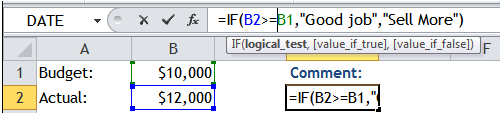
For example, we want to comment on a shop’s performance by looking at its actual sales. If Actual hits Budget, then Good job, else Sell More.  In Excel, it will be translated as follow:

Excel tips - IF

How about we need to consider one more thing, say if there is any complaint to the shop?

  • IF Actual hits Budget AND no complaint ==> Good job
  • IF Actual hits Budget AND there is complaint ==> Serve better
  • IF Actual does not hits Budget AND no complaint ==> Sell More
  • IF Actual does not hits Budget AND there is complaint ==> In trouble

In this case, a nested IF formula is required:Excel tips - IF(2)

It looks complicated… but it is not if you follow a flowchart and build the formula step by step. Continue reading

Posted in Formula | Tagged | 12 Comments

Trick or Treat 2015

This is Halloween, This is Halloween…

Excel Tips - Trick or Treat 20151

Last year, I showed you the trick to turn your screen upside down…

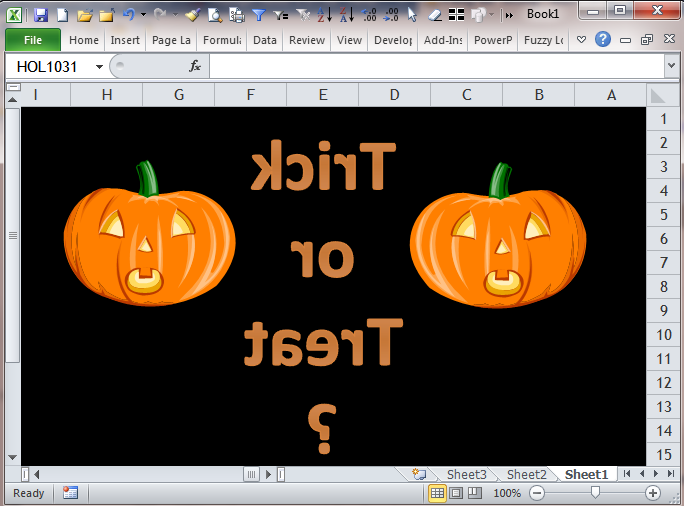
This year, you learn the trick to display your spreadsheet from right to left. Continue reading

Posted in General | Tagged | Leave a comment

Get rid of the GETPIVOTDATA without disabling it

If you do Pivot Table, I believe you should have experienced the following too.  Excel Tips - GetPivotData 0

GETPIVOTDATA is good.  But sometimes we just want a simple cell reference.  We may disable the GETPIVOTDATA easily by going to Pivot Table Option –> Uncheck the “Generate GetPivotData”:

Excel Tips - GetPivotData 1

But as I said, GETPIVOTDATA is good.  I want to keep it on.  So here is a simple trick I would do. Continue reading

Posted in Excel Tips | Tagged | 2 Comments

F12 – It is for the things that matter

Why is F12 for the things that matter?  Because it basically performs one crucial action: SAVE.

Excel tips - F12

  • F12 alone – Save as (Alt+F2 does the same)
  • Ctrl+F12 – Save as (same as F12 alone)
  • Shift+F12 – Save (Ctrl+S does the same and is preferable)
  • Ctrl+Shift+F12 – Go to “Print Preview and Print” (Ctrl+P does the same and is preferable)

I believe the above descriptions should be simple and clear enough for even an Excel novice to understand.  Therefore I would rather wrapping up the Function Key series in this post.

Do you think I remember all these combinations I showed in this series??

The answer is absolutely NO.  Continue reading

Posted in Shortcut | Tagged | 1 Comment

F11 – it is for coding

F11 key should be the most-hit key for those who use Marco or VBA a lot in Excel.  If you use F11 but do not work with VBA at all, then you must have inserted new (blank / chart) sheet very often.  🙂

The working combinations for F11:

  • F11 alone – Creates a new chart sheet
  • Shift+F11 – Inserts new sheet
  • Alt+F11 – Opens VBA editor
  • Ctrl+F11 – Inserts a sheet (not exactly a worksheet though) called “Macro1”, “Macro2″…

Continue reading

Posted in Shortcut | Tagged | 2 Comments

F10 – It is for showing the tips

Out of the following combinations for F10, I find one of them really useful.  Wanna guess which one?

Let’s take a quick look at what F10 does:

  • F10 alone – Shows the shortcut key for the commands on the Ribbon and QAT
  • Shift+F10 – Shows the shortcut menu for a selected cell or item
  • Alt+F10 – Turns on / off Selection Pane
  • Alt+Shift+F10 – Shows the menu for an Error Checking button
  • Ctrl+F10 – Restores or Maximizes the window of a workbook

Continue reading

Posted in Shortcut | Tagged | Leave a comment

F9 – it is for giving you “correct” answers

Excel tips - F9

When you think your Excel is not calculating… Stay Calm and Press F9.

I have to admit that I did not know about “Manual Calculation” mode in Excel long long time ago.  I still remember how stupid I was when I complained to the interviewer about the “bug” in her PC that made Excel do not calculate.  Yes, I was put on an Excel test and for whatever reason the Excel was set to “Manual calculation”.  What’s the point of the test??? @_@  I failed the interview of course.

Now I know and I would pay attention to the status bar.  Indeed, the information on status bar is sometimes really helpful!

Excel tips - F9 (1)
Continue reading

Posted in Shortcut | Tagged | Leave a comment

F8 – It is for selecting range(s) of cells

In the introductory post of Function Keys, I used F8 as an example to illustrate the situation when we thought we know English but cannot comprehend a sentence.

F8: Turns extend mode on or off. In extend mode, Extended Selection appears in the status line, and the arrow keys extend the selection.

Source: support.office.com

Actually there are there more combinations for F8.  In short,

  • F8 – Extend selection
  • Shift+F8 – Add to selection
  • Ctrl+F8 – Resize the window of the workbook when it is not maximized
  • Alt+F8 – Open the Macro dialogue box

Are they clear now?  Maybe the final two, but definitely not the first two.   Continue reading

Posted in Shortcut | Tagged | 2 Comments

F7 – It is about word

Excel Tips - F7 (0)

If you do not spell very well and your boss pays attention to spelling, please make sure you  press F7 before sending your Excel reports.  Otherwise, your boss may challenge your spelling instead of your analysis. 🙂

F7 key is mainly for word-related functions:

  • F7 alone – Open the Spell Check
  • Shift+F7 – Open the Research Task Pane

Excel Tips - F7

Ctrl+F7 – Allow you to move window of workbook when it is not maximized. Continue reading

Posted in Shortcut | Tagged | Leave a comment

F6 – It is for those who do not like Mickey…

If you never work with mouse for your Excel work, I believe your are a true master in using F6.

If you use both mouse and keyboard like most people do,  you may probably know little about F6.

However if one day your mouse refuses to work, you will regret for not knowing what F6 does.

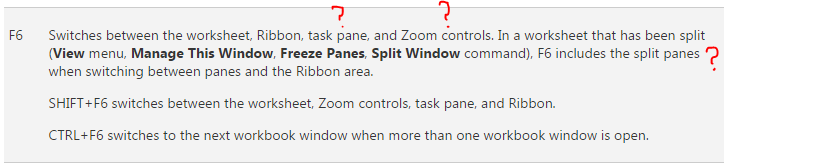
So what F6 does?  Take a look at the following screenshot captured from support.office.com

Excel Tips - F6

Got it?!  No way… Continue reading

Posted in Shortcut | Tagged | 1 Comment

F5 – It is the key I rarely press

The working combinations for F5.

  • F5 alone – Open the Go To Dialog box
  • Ctrl+F5 – restore the window size of the selected workbook
  • Shift+F5 – Open Find (and Replace)
  • Alt+F5 – Refresh Pivot Table
  • Ctrl+Alt+F5 – Refresh All

Nevertheless, it takes you to two must-know tools in Excel: Go To, and Find and Replace.

Continue reading

Posted in Shortcut | Tagged , , , , | Leave a comment

F4 -It is my buddy!

Two years ago, I wrote two posts about using F4.

Honestly, these were the only two ways I know about F4 by that time.  Now I know it is more and it’s become the most hit function keys for me… so what F4 does?

  • F4 alone (contents enriched vs. the posts before)
  1. Switch absolute/relative cell reference while editing formula
  2. Repeat last action in general
  • Ctrl+F4 – Close active workbook
  • Alt+F4 or Alt+Shift+F4 – Close active program (Excel)
  • Shift+F4 – Find next (What?)
  • Ctrl+Shift+F4 – Find previous (What??)

Continue reading

Posted in Shortcut | Tagged | 2 Comments

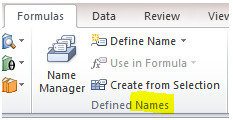
F3 – It is about Naming…

Excel Tips - F3

F3 key can be used with the following combinations:

  • Ctrl+Shift+F3 – Create Names from Selection
  • Ctrl+F3 – Open Name Manager
  • F3 alone – Paste Name
  • Shift+F3 – Open Insert Function dialog box

As you see, F3 is mainly used for Name related shortcut.  If you know about how to apply Name for formula writing, you should find F3 really helpful.  If you do not know about how to apply Name for formula writing, this post may serves as a starting point for the basic of Name Manager. Continue reading

Posted in Shortcut | Tagged , | 1 Comment

F2 – It is about inputting and editing… what? Please elaborate!

Among the F1-F12 keys, I use F2 most often.  Why? Because it helps me edit cell contents quickly.  On the other hand, F2 is extremely  helpful when I try to edit cell reference in chart or revising reference in Name manager.

In short, F2 key does the following:

  • F2 alone – Go to edit mode
  • Shftt+F2 – Insert/Edit comment
  • Alt+F2 – Save as
  • Alt+Shift+F2 – Save

That’s all??! Absolutely no! Continue reading

Posted in Shortcut | Tagged | 4 Comments

F1 – A must-know key if you are a self-learner!

This is the first post of the Function Keys series.  Why F1 is the must-know key for self-learner? Because it takes you to Excel Help! 🙂

Literally, the F1 key serves the following in Excel:

  • F1 alone – Open “Need Assistance?”  (it may go directly to the function you want to know more about, if you know where to hit the F1 key)
  • Ctrl+F1 – Show/Hide Ribbon
  • Alt+F1 – Insert a chart of the current range on the same worksheet
  • Alt+Shift+F1 – Insert worksheet Continue reading
Posted in Shortcut | Tagged | Leave a comment

What the Function keys do in Excel?

Excel Tips - Function Keys

F1  F2  F3  F4  F5  F6  F7  F8  F9  F10  F11  F12

F1 to F12 are always sitting on the keyboard quietly.  How often do you use them?

In the era of Google, you may find what you need by simply searching something like “Function keys in Excel”.  Then you will probably be overloaded by the huge amount of pages found.  (Well, that happens to every search…)

When you look into the top few pages, you will likely find a list of shortcut combinations for F1 to F12 in Excel, mostly in written texts.  Unless you know Excel quite well already, there is a high chance that you still do not understand what the Function keys do in Excel after reading the descriptions.  For example:

F8: Turns extend mode on or off. In extend mode, Extended Selection appears in the status line, and the arrow keys extend the selection.

Source: support.office.com (you may find a list of shortcuts there)

Do you really understand what F8 does after reading the above?

To celebrate the 2nd Anniversary of this blog – wmfexcel.com (the first post was published on September 7, 2013, time really flies!), I am going to write a series of Function Key every Monday, Wednesday and Friday in the coming weeks, one Function Key in one post.

You may wonder why I don’t put all the twelve function keys altogether in one post?  The reason is to keep you focused.  I believe it’s a better way to learn and get something practical out of it.

Please be ensure that I won’t simply copy and paste the lists to my posts.  Instead, I will try to incorporate texts (inevitably) with screenshots for better illustration.  And of course, I will add my comments and tips in usage, whenever possible.

Stay tuned! 🙂

Posted in Shortcut | Tagged | Leave a comment

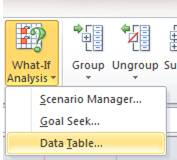
Be careful when using Data Table

This is not about how to use Data Table.  Just to share a problem I encountered with Data Table recently.  If you have never heard about Data Table in Excel, you may skip this post. 🙂

Excel Tip - Be careful with Data Table 1

Data Table (part of the What-If analysis tools)  is one of my favorite tools in Excel.  Nevertheless, it is also one of the most under-used tools.  I guess not many people use it.  If you are one of Data Table users, have you encountered a situation that gives you unexpected result?  I just did.   Continue reading

Posted in Excel Tips | Tagged , | 13 Comments

Mouse Tips – Move cell to other sheets

Excel Tips - Move cell to other sheets 1

If you have tried to move a cell from one sheet to another sheet by dragging it to the Sheet tab, you would be frustrated it just keeps you (going) DOWN.  😛 Continue reading

Posted in Excel Tips | Tagged | Leave a comment

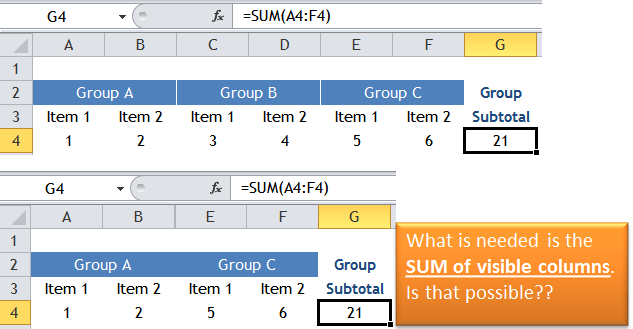
A trick to SUM visible columns only (without VBA)

Excel Tips - SUM visible columns

We know that SUBTOTAL allows us to perform some basics functions like SUM, COUNT, AVERAGE, etc.  that apply to visible rows only.  However, there is no similar function for visible columns only.

Excel Tips - SUM visible columns 1If we need to SUM visible columns only, we will need a twist. Continue reading

Posted in Excel Tips, Formula | Tagged , , , | 15 Comments

Put a dynamic hint for showing or hiding rows or columns hidden by Data Group

This is about using SUBTOTAL and CELL function to detect whether a row and a column is hidden respectively.

When rows are hidden by Data–>Group, you will see a +/- button on the leftmost of  spreadsheet to remind you that you may expand or collapse the data you are looking at.Excel Tips - Dynamic Hint for showing or hiding hidden rows

To me, this +/- button is obvious enough.  However, my experience told me that it is NOT.  Some users simply have no idea what is the button for.  And for some reasons I cannot understand, they do not even try to click on it to see what will happen.

That gives me a thought of putting a hint on the cell next to it to remind user.  Like the screenshot below:

Excel Tips - Dynamic Hint for showing or hiding hidden rows 2 Continue reading

Posted in Excel Tips, Formula | Tagged , , | Leave a comment