There are many online-converters. I tried a few of them (freebies) but the result was not satisfactory sometimes. I don’t blame them as I had managed my expectation. 😛
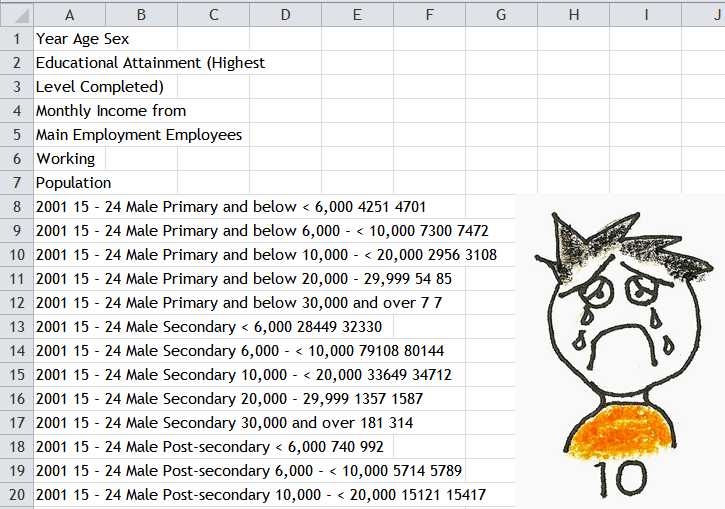
Without PDF converter, what I tried to do was COPY and PASTE… as you may already know, there is no luck… The following screen shot shows what I got from COPY and PASTE….(well, the clip art was added afterward.)
See!? Data on different columns were concatenated by space, all in column A. There is no simple way for me to re-organize the pasted data back into a table format, not even with Text to Columns as there is no fixed delimiter nor width. And there were 10 pages of data… 😦
One day, I read an article about viewing PDF file from OneDrive: PDF file we put in OneDrive would be viewed in Word Online… Then I tried to connect the dots… BINGO, that’s the solution although imperfect. Continue reading →
Many people talk about VLOOKUP and agree that it is one of the most useful functions in their work life with Excel. However, if you ask them about HLOOKUP, maybe 30% of them have no idea of its existence. The Google search result may reflect a little bit…
The result is not surprising at all given the nature how we are taught to organize data in a table. The rule of thumb: each row holds one record. Therefore we are likely to have a vertical table like the screenshot below which is ideal for VLOOKUP. Continue reading →
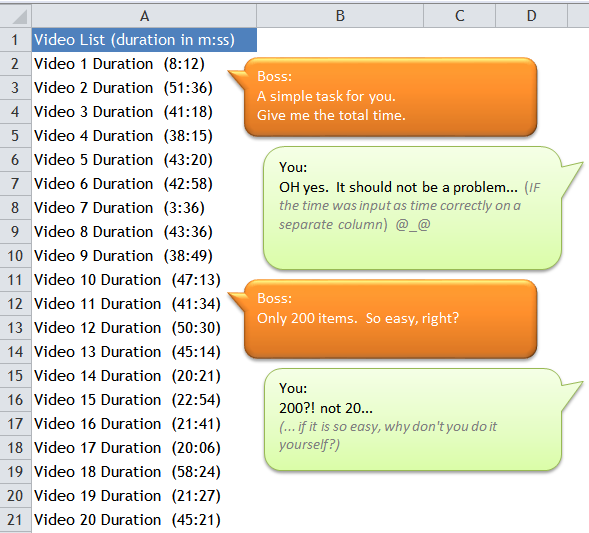
Did you encounter a task like this? I did. Actually it is not as difficult as you may expect. It could be done in just a minute IF the data is not too bad, like the one shown above.
I am going to show you two approaches to handle this:
Formula;
A combination of simple techniques that even a regular Excel user should be able to manage.
If you think Ctrl+A does merely Select All, then you are likely not using it frequently. Let’s me take you through how to boost your efficiency working with Excel with Ctrl+A under different situations. Continue reading →
This is about using wildcards in referencing cells on other worksheets.
If you know the basic rule about naming a worksheet, you should know that we cannot use ? or * in any part of a worksheet’s name. So there won’t be a worksheet named ‘???’ and intuitively you will think the formula set above gives you nothing but error. Well, it depends… on how you name worksheets in your workbook. Continue reading →
If you Google “Excel 2016 preview”, you will find many previews and comments for Excel 2016 on the Internet.
I have not tried Excel 2016. Indeed, I have not yet tried Excel 2013 either, although I keep an eye on what cool and awesome features have been added to newer versions of Excel.
As a matter of fact, the speed of software update in workplace (especially in small and medium enterprises) is much slower than the speed of software development in the market. A friend of mine is working in a well-known international bank where he is using Excel 2007. I worked in a multi-national brand, where Excel 2003 is still being used in both back office and front line. @_@
Many companies just do not invest in basic softwares like MS Office although they are willing to spend $$$ on systems like SAP, ERP, SaleForces, etc.. To these companies, maybe the only difference between Excel 2000 and Excel 2016 is a big grid of cells and a bigger grid of cells.
Another obstacle (probably the core reason behind) would be “Backward Compatibility”, which was quite obvious when Excel 2007 was launched. I think this is the main concern when a company considers to update the Excel they are using. Just to cite a few examples:
Imagine you have created a wonderful dashboard with Slicers (in Excel 2010 or later), however your business partner (the report reader) is reading the report with Excel 2007 (that does not support Slicer).
A new chart feature in Excel 2013 allows you to name your Data Label by reference; however the Data Label done in this way would not be displayed properly in Excel 2010.
It’s cool to generate a WaterFall chart in Excel 2016, but we have to think about if we want it to be a “Read-only” object to be viewed in Excel 2010? (I’m not sure about this.)
There are actually many more situations to be considered regarding backward compatibility. I guess Microsoft is aware of it. Maybe that’s the reason Microsoft has launched the Office 365 plan so that everyone is on the same pace.
So I am wondering, which version of Excel is being used in your workplace?
And do you think your company will update to Excel 2016 when it is on the market?
This is about how to clean up data for a simple VLOOKUP task. To be more specific, how to separate data delimited by line break in a cell, as you see in the following screen shot.
The one who input record like this should have plenty of time; or expect you to have nothing to do; or simply because s/he just learned how to input line break in a cell… I hope you will never encounter a file like this. Nevertheless just in case you do, you know a way to clean it up. 🙂 Continue reading →
One day I intended to press Alt+= (which is the shortcut for Auto Sum), but I wrongly press Windows+=, and something interesting pop up…
Instead of an auto sum formula I expected, I saw a rectangular magnifier moving with my mouse. Basically, wherever I moved my mouse, the magnifier followed and gave me a magnified view of the area underneath. Continue reading →
One day, a friend asked me: “If she deletes contents from a filtered range, would she also delete the hidden content?” I answered: “Try and observe!” 😛
I know that is not the answer she expected. Nevertheless, I believe that is the best way to learn.
Honestly I had the same question and hesitation before. I found that it is quite confusing about the different behavior between hidden rows by hiding rows or by Filter. It took me some time to do some tests to observe and understand the differences. Here’s my sharing: Continue reading →
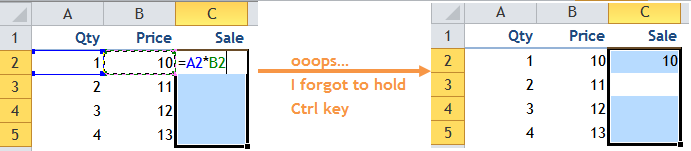
Ctrl+Enter is one of my favorite shortcuts. It helps me to input a value or a formula to a range simultaneously. As usual, Ctrl+Enter won’t let me down. But many times, I just type too fast and forget to hold Ctrl when hitting Enter, like the screenshot below:
Sound familiar to you too? What would you do then? Go back and repeat the intended action of Ctrl+Enter? Continue reading →
This is about how to filter a particular date, say 1st of January regardless year, from a list of dates.
As a matter of fact, not many people are aware of the Date Filter feature in Excel. This is true at least in my working environment… 😛 Starting from Excel 2007, Excel groups date into a hierarchy of Year/Month/Date in Filter, provided that data of the whole column is input correctly as Date, but not text, and with no blank. This is only one of the advantages of having date input correctly in Excel.
And the Date Filters actually provides many handy options for you to filter date range that meet your need. For example, if you wanna show all dates in January ignoring years:
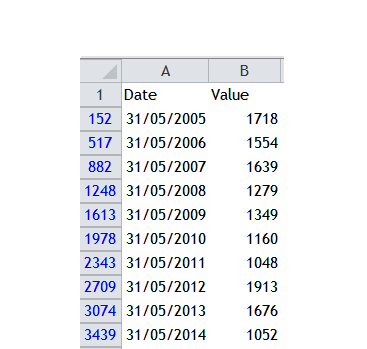
Have you ever encountered a filteredrange without Filter drop-down buttons available on the top? No idea what I am talking about? Take a look at the following screenshot.
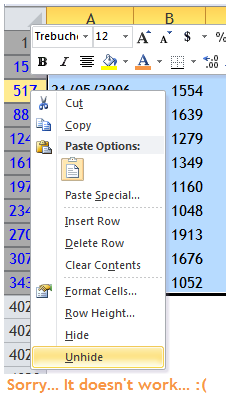
Without the Filter buttons on the top, I tried to show hidden rows by unhiding rows without success…
In the process of writing my previous post, I found something wrong with Filter… when Column A contains formula starts with SUBTOTAL, Auto Filter refuses to take the last row.
How to copy data from a range where you cannot select, due to worksheet protection?
Here’s the situation: You receive a worksheet with data but not insight. Well, it happens and you get use to it already. You plan to copy the (raw) data and paste it to a new worksheet and do some analyses on your own. Unfortunately you are prohibited from performing such a simple action because the worksheet is protected in a way that you cannot select the cells with data you need. (Of course you do not know the password to unprotect the worksheet.)
What are you supposed to do then? Print a hard copy and then re-input the data one by one? If this is the approach you used, you’d better read this. Continue reading →
You may have no idea about the shortcut key combinations above (the middle clip art is not a key combination, ok?!). That’s normal, I guess. Most of the time we talk about keyboard shortcuts, we think about Ctrl or Alt. However, have you ever tried the Menu Key on your keyboard? (If you do not know where the Menu Key is, please read the previous post.)
If you are a fan of Autofilter AND a hater of mouse, you will love this trick. Continue reading →
This key is sitting on the keyboard forever. I wonder how many people have ever pressed it? Maybe you don’t even know where the key is on keyboard… do you?
It is between “Windows” and “Ctrl”, just two keys below the most-hit Enter key. Please be honest, before you read this post, what is the last time you pressed the Menu Key (intentionally)?
I will share with you my favorite usage of Menu Key next week. Stay tuned! 🙂
If you are having this kind of issue all the time, you may want to continue reading this as I am going to show you three different approaches to fix the problem.
Time really flies. This is the 100th post on wmfexcel. I would like to take this opportunity to thank you very much for visiting my blog. Personally I have learnt a lot in the process. I hope you learn something too.
Special thanks to my friends:
Roger Wong and Kitty Ip – I guess you may not remember that we talked about it causally in a dinner gathering. Many times actions are consequence of ideas. What we need is just a little push. Isn’t it? You two gave me the little push. 🙂
Mad Lei – You introduced WordPress.com to me. It is such a nice platform for blogging. Thanks for showing me a platform. 🙂
I hope my Excel knowledge will grow continually, and so do you!
Disclosure: The author earns a small amount of commission (at no additional cost to you) for the product/service successfully sold through the links of [Affiliate].
Wanna buy me a drink!?
Click below photo to my PayPal.Me
I appreciate it. :)




 If you think Ctrl+A does merely Select All, then you are likely not using it frequently. Let’s me take you through how to boost your efficiency working with Excel with Ctrl+A under different situations.














 wmfexcel