Lost in colors

Which one of the following charts use better colors?

Excel Tip - Lost in Color 1.PNG

It is not surprising if you prefer the one on the left as the colors used are of high contrast.

However, will you change your mind after you read the same charts printed in black and white? Continue reading

Posted in Excel Tips, General | Leave a comment

Input fraction number in Excel

This title sounds a bit silly,  but I do believe many users must have experienced frustration when they tried to input a fraction number as simple as 1/2 in Excel.

Excel Tip - Input Fraction.gif

When we input something like x/y, Excel assumes that we are inputting a date (whenever it can resolve it as date, e.g. 1/2 will be interpreted as either 1st of Feb or 2nd of Jan of current year depending on the setting of your computer; when the input cannot be resolved as date, e.g. 25/50, Excel turns it into text).  I agree that such default behavior may annoy some users.  Still we need to admit that we cannot please everyone most of the time.

There are two ways to tell Excel your intention of inputting fraction number:

  1. Through Formatting
  2. Through a trick

Continue reading

Posted in Excel Tips | Tagged , | Leave a comment

Rank in subgroup… RANKIF?

Excel tip - Rankif.PNG

To get the overall ranking is easy with the RANK function.  The syntax of RANK

=RANK(Number,Ref,[order])
  • Number is the number we want to rank;
  • Ref is the list of numbers of comparison (could be an array, a reference or a list of numbers);
  • Order, is the optional argument, when omitted or 0 it meanings descending order (i.e. larger number has higher rank); 1 = ascending order (i.e. smaller number has higher rank)

So to get the overall ranking, the following formula does the job effectively:

=RANK(C2,$C$2:$C$7)

How about to get the rank in class?  You may want to look for a function like RANKIF.  Unfortunately, there is no such straightforward function in Excel so far…

So is there a way to solve the problem above?

Array formula is on top of your mind?  If that’s the case, I believe you have quite good knowledge in Excel.  In my observation, majority of Excel users is not familiar with array formula.

Therefore, instead of showing a “complicating” array formula, I will show you how to use COUNTIFS to solve the problem.  Yes, you heard that – COUNTIFS. Continue reading

Posted in Formula | Tagged , , | 9 Comments

Don’t Miss Out on the Early Bird Registration for Allen Wyatt’s Excel Macros for Beginners course

About a week ago I let you know about Allen Wyatt’s Excel Macros for Beginners course. At the time, I invited you to visit Allen’s overview for the course, and I told you that you could register for this excellent course for 20% off the regular price.

Today, though, I’m writing to remind you that the early bird special (the 20% discount I just mentioned) is ending. In fact, it will officially end at 8:00 pm Pacific time pm on Thursday, March 10. You can still sign up for a limited time after that time (the registration period fully ends on March 17), but you won’t be able to receive the 20% discount that early bird registrants receive if they register by 8:00 pm on Thursday, Pacific time. (I’ll let you calculate what the actual ending time is for your own time zone.)

Since he started accepting registrations for the course, Allen has received a few questions, which he shared with me. I figured that I would share those questions (and Allen’s answers) with you, just in case some of the same questions crossed your mind.

Question: Do I have to learn how to create macros in order to use Excel?

Allen’s Answer: No, you don’t. In fact, you can go through life without ever knowing what a macro is. For some people, their use of Excel doesn’t really require the use of macros. For other people, however, they immediately become more productive (and more valuable to their teams and company) when they add “macro skills” to their Excel toolkit.

Question: Do you think I can learn how to create macros?

Allen’s Answer: Yes, I do. In fact, I haven’t run into a single Excel user who couldn’t learn how to create macros with just a little bit of effort. It isn’t magic, and it isn’t a “black art.” With the right instruction, you can be creating macros in no time! (And, I’d be remiss if I didn’t mention that I think the Excel Macros for Beginners course is “the right instruction.”)

Question: Is it hard to learn to create macros?

Allen’s Answer: That’s a tough one to answer. Everyone is different, and everyone comes to the table with different skills and aptitudes. As I said, I think that everyone can learn how to create and use macros, but it really all depends on your determination and drive. This is no different than acquiring any new skill; if you make the effort, put in the time, and do the work, you’ll reap the benefits available through the course.

Question: When and how will I receive each lesson in the course?

Allen’s Answer: Once you register for the course, all lessons and materials are immediately available. That way you can learn at your own speed, day or night, weekdays or weekends—it is up to you. Plus, registration entitles you to access all lesson materials for an entire year.

Question: What type of time commitment does the course require?

Allen’s Answer: If you take a look at the web page I’ve prepared, you’ll find that the video modules that make up the course are, in aggregate, about 11-1/2 hours long. Each module is anywhere from a few minutes to about 30 minutes in length, and I provide complete information (once registered) as to the length of each module. That way you can plan out what is best for your schedule as you discover how to create macros.

I appreciate Allen sharing both the questions and his answers to those questions. I’m betting that you are the type of person who can truly benefit by taking the Excel Macros for Beginners course.

There is no better time to act than now. Be sure to take a few minutes before Thursday evening to register for the course; I don’t want you to miss out on the 20% savings that awaits you.

Thanks!

Oh, and in the spirit of full disclosure, you need to know that I do make a small commission if you decide to join Allen’s course. I don’t just recommend anything and everything; Allen’s got the necessary professional “chops,” and his course has the quality and value that make me happy to recommend it without hesitation.

Posted in General | Tagged , | Leave a comment

An example of using Solver for a causal problem in daily life

This post is intended to give you an example of using Solver in Excel to solve a causal problem in daily life – buying postal stamps.  Don’t consider it a tutorial. 😛

Have you ever heard of Solver in Excel?

I think Solver is not a common tool to most users, regardless of years of experience of using Excel.  I learned Solver in my MBA study a decade ago.  I was impressed by the power of Solver.  Nevertheless, I have never encountered a situation that I needed Solver in my work life, so far (probably due to my job nature).  Solver is just for fun to me until one day I went to post office…

There was a super long queue and I was not patient enough to wait.  Therefore I went to weigh my small parcels and see how much fare was required for each parcel.  It was HK$9.8 and HK$11.7.  Then I went to the self-service stamp vending machine to buy the stamps… Wait, there were only four options available.  I don’t remember the four options, let say HKD1.7, HKD2.2, HKD3.0, HKD3.7.

Obviously, the question was: How many stamps of what values should I buy, so as to minimize the total amount to be paid while ensuring enough postal fare??? Continue reading

Posted in General | Tagged , | 1 Comment

Want to learn Macro? Here’s the chance.

If you have been following my blog, you should know that I focus on tricks and tips of “preset” ways in Excel. For some people, using those preset ways is enough, but for others, Excel may be a bit restrictive in allowing them to work with their data in exactly the way they need.

That’s where the power of macros comes into play. With macros you can extend what Excel can do, making it process your data, worksheets, and workbooks just the way you want.  What’s more, you may start automating routine processes and save huge amount of time from doing repetitive (boring) works.

If you know how. (That’s always the kicker, right?)

You see, the whole idea of macros can be a bit intimidating to some people. It needn’t be, particularly if you have the right instructor showing you how to create and use your own macros.

Fortunately, I’ve found the “right instructor.” Allen Wyatt, who has been publishing his ExcelTips newsletter since 1998. (Yes, for 18 years!) He’s also been writing books about Excel and teaching others how to use it for even longer than that.

The cool thing is that he has put together what he’s called the “Excel Macros for Beginners” course, and it’s awesome! He’s prepared a great overview to the course that you should definitely check out if you are new to the whole idea of creating your own macros.

Allen opens the doors to his course only a few times each year, and they are open right now. The great news is that you can sign up for the course at 20% off the regular price! (This early bird pricing is available for only a limited time.) When you register for the course, you get 24/7 access to all materials–and there’s a boat load of them–for a full year. Plus, Allen personally provides support for the first 6 weeks of the course.

Macros are a great tool that can enhance what you do with Excel. Those who learn how to create and use them aren’t limited to the built-in tools provided by the program. Allen’s course can provide you with the valuable skills you need to finally master macros.

Do yourself a favor and check out the course. You’ve got nothing to lose and an entirely new skillset to gain.

Give it a try. Remember that you’ve only got until March 10 to take advantage of the early bird pricing, though.

Oh, and in the spirit of full disclosure, you need to know that I do make a small commission if you decide to join Allen’s course. I don’t just recommend anything and everything; Allen’s got the necessary professional “chops,” and his course has the quality and value that make me happy to recommend it without hesitation.

Posted in General | Tagged , | Leave a comment

Convert .xls to .xlsx in a few clicks

Let’s bring the Excel file from stone age back to modern world.

A few years ago, my company switched from Office 2003 to Office 2007.  I was one of the very  few who felt excited about the change.

On the day IT department made the announcement, they reminded users to save file as old formats (e.g. .xls, .doc, .ppt, etc.) for compatibility issue.  Well it is understood, although I don’t agree with it.  What’s the point of buying a smart phone if you intend to make phone call (and SMS) only. 😛 Continue reading

Posted in Excel Basic, Excel Tips | Leave a comment

Make impossible possible

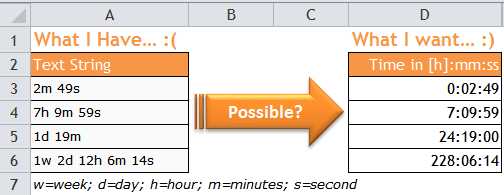
Convert text of specific pattern like “1d 2h 3m 4s” into real time (26:03:04) in Excel

To kick start the Year of Monkey, let’s challenge the apparently impossible…Excel tip - convert text into time.PNG

Do you think it is not possible in Excel?  If you do, you are absolutely normal. 🙂

In fact, the solution for this may be much shorter than you may have expected:

=SUMPRODUCT(IFERROR(MID(" "&A3,SEARCH({"w","d","h","m","s"}," "&A3)-2,2),0)*{604800,86400,3600,60,1})*(1/24/60/60)
'where A3 is the cell holding the text string

To understand how it works, bear in mind one simple goal:

To find out how many “seconds” represented in the text string. Continue reading

Posted in Formula | Tagged , , , , , | 2 Comments

Calculate number of “*day” in a given period

This post is about how to twist the NETWORKDAYS.INTL function to solve the question.

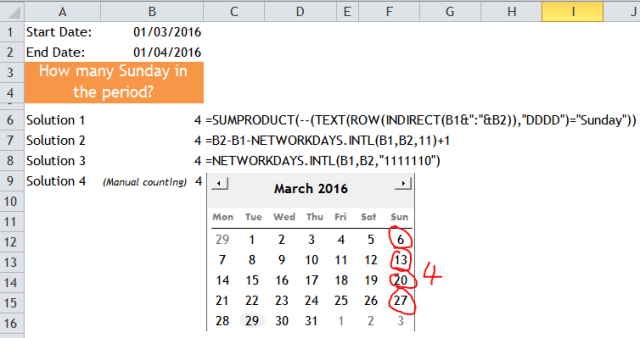
Excel Tips - Calculate Xday in a period.PNG

About two years ago, I wrote a post <Calculate number of a specific day between two dates> to explain how the following formula (Solution 1) could solve the question:

=SUMPRODUCT(--(TEXT(ROW(INDIRECT(B1&":"&B2)),"DDDD")="Sunday"))

I like this formula very much for solving the question…until one day in the beginning of this year, Chandra Mohan left a comment to suggest an alternative formula (Solution 2):

=ED-SD-NETWORKDAYS.INTL(SD,ED,11)+1 
where ED is End Date; SD is Start Date

Wow!

While I was still impressed with the use of NETWORKDAYS.INTL function and the simple logic behind this solution, another comment by John Jairo V came in two days later, with an even better twist of using NETWORKDAYS.INTL for this question (Solution 3):

=NETWORKDAYS.INTL(A1,B1,"1111110")

Simply awesome!!!  (I will tell you how awesome it is by the end of this post.)

This is why I love Excel so much.

  1. There are so many different ways to achieve the same goal;
  2. When I think I know something, I am not indeed.  There is always new excitement!

So in this post, I am going to show you the less-known function NETWORKDAYS.INTL and how it helps to solve the problem. (Interestingly many people who know NETWORKDAYS are not aware of NETWORKDAYS.INTL, are you?). Continue reading

Posted in Formula | Tagged , | 6 Comments

Limitation (or bug?) with Filter by Color

Did you know that you can filter by color since Excel 2007?  Yes, that’s almost 10 years.  I wont’ say it is a new feature notwithstanding the fact that many people are not aware of it yet. 😛

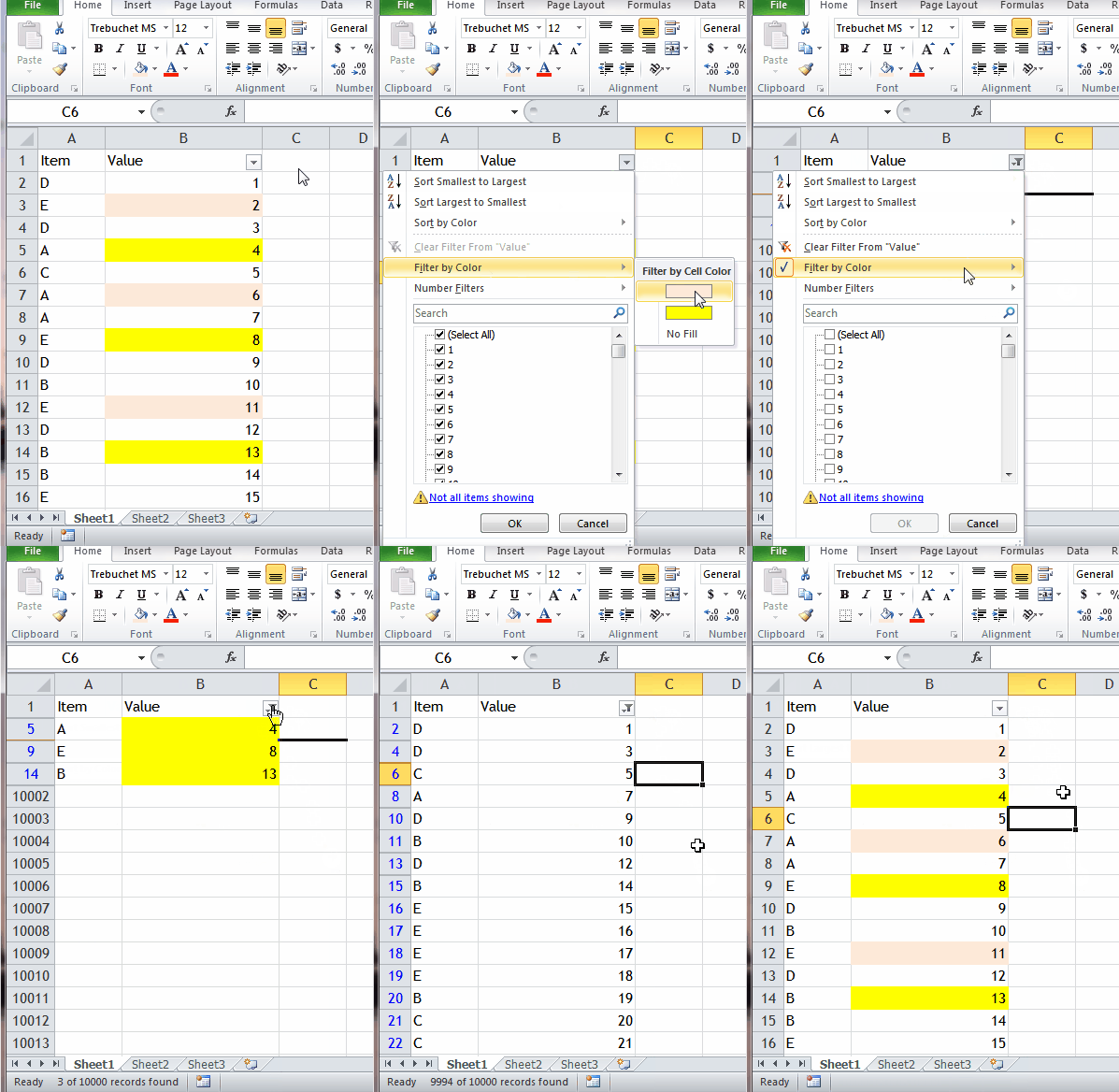
Filter by Color is nice and easy to use, which I think there is no argument.Excel Tip - Filter by color.gif

Interestingly, the Filter by Color may not be working properly if we are working with a very large table.  What I mean by “large” here is a table with a column of more than 10001 unique items.

The following demonstrates the situation:

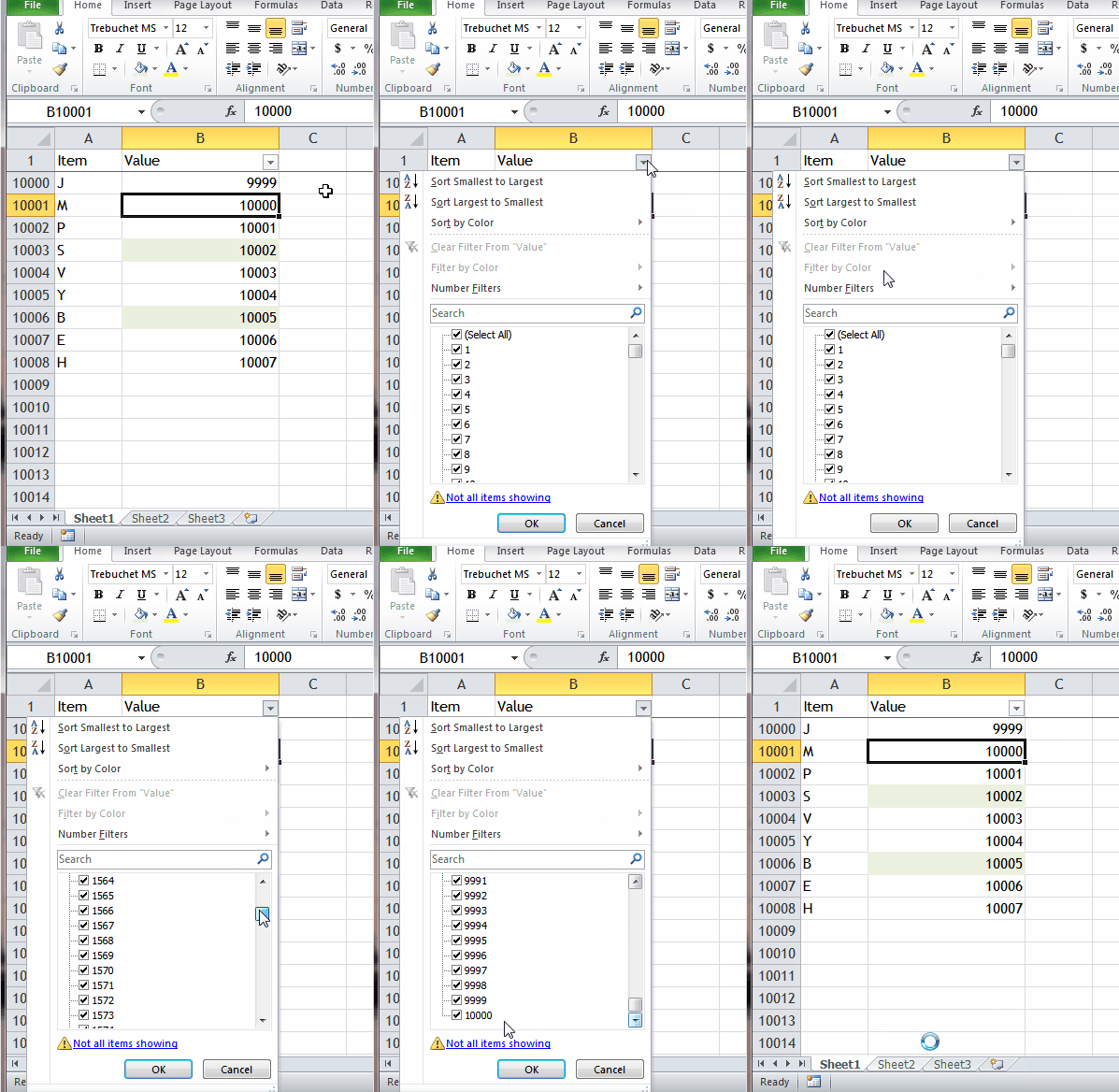
The first filled color appears on row 10003, which is the 10002th unique item on column B.  Surprisingly, Excel fails to detect the filled color and hence does not offer me the Filter by Color.

Excel Tip - Filter by color1.gif (Note: If the filled color starts on the 10001st unique item, it works normally… @_@)
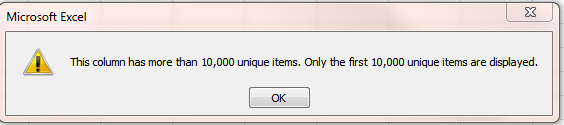
 

By default (or limitation), Excel only displays the first 10,000 unique items in filter.Excel Tip - Filter by color.PNG

I am not sure if it is the reason for Excel’s failure in detecting the filled color that falls on/after the 10,002nd cell.

Here’s a a not-so-perfect workaround… Continue reading

Posted in Excel Tips | Tagged , | 17 Comments

Sort by row (i.e. from left to right)

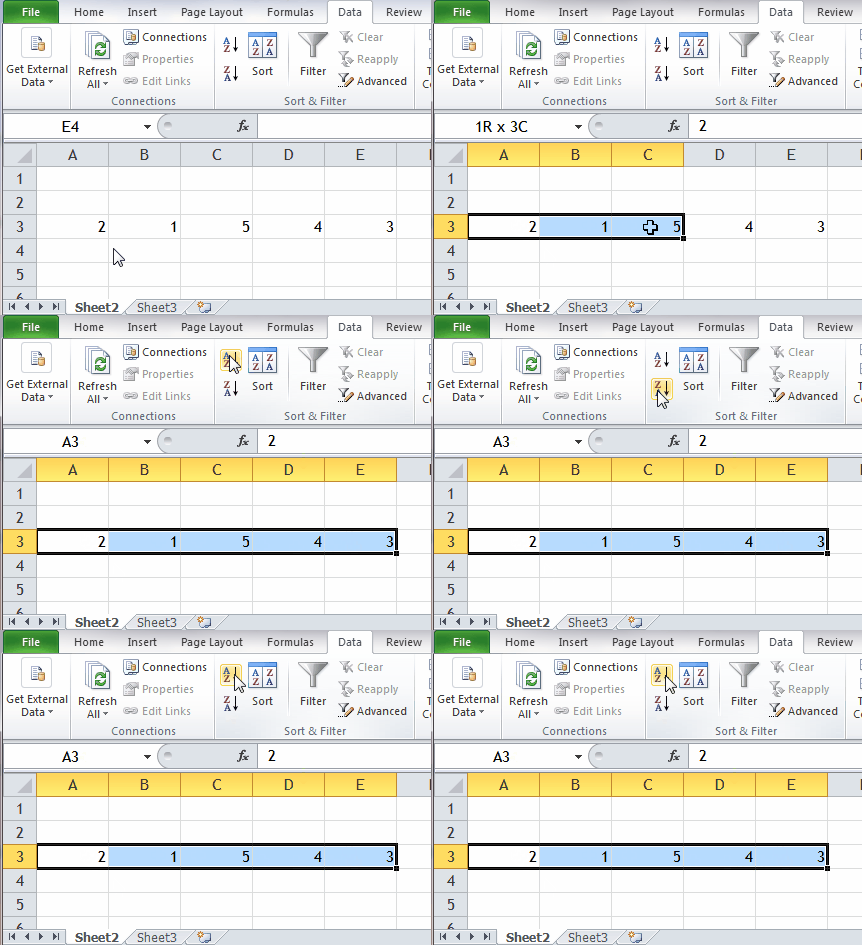
Sorting is easy, when the orientation of data is vertical.Excel Tip - Sort by row.gif

Although we are expecting data in a vertical layout, it is not uncommon that we still encounter data in a horizontal layout in real world.  Don’t you?

With data in a row, such simple task as sorting could become a headache to many people as sorting seems not working properly…Excel Tip - Sort by row 1.gif

Are you one of them?  Don’t worry.  It is totally doable.  What we need are just a few more clicks. Continue reading

Posted in Excel Basic, Excel Tips | Tagged | 2 Comments

Display % of column and % of row in a dynamic way

This post is intended to give you an introduction of CHOOSE function and Option Button (Form Control).

Here’s the situation:

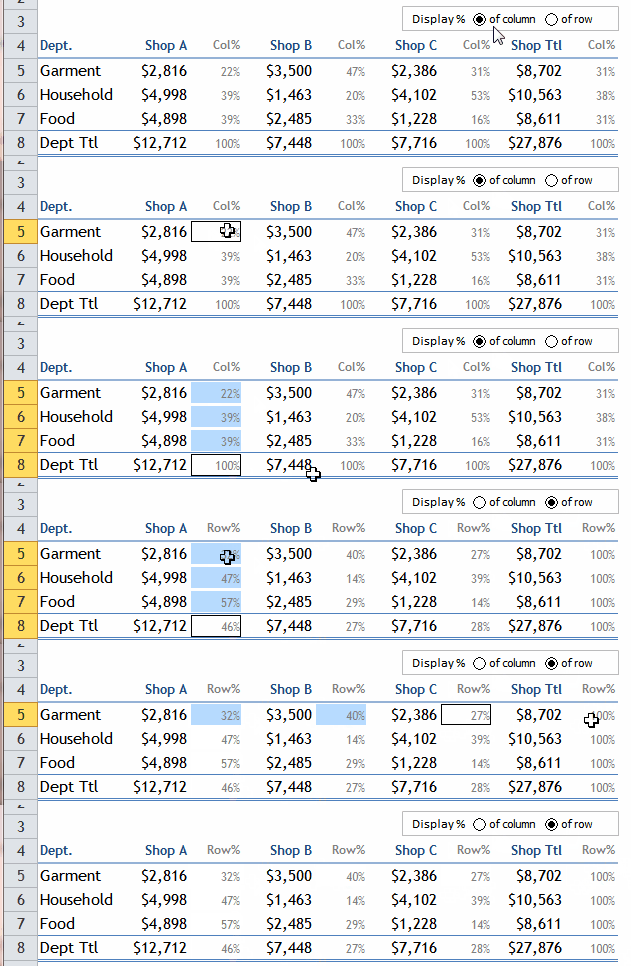
We want to display the % of total in a 2-D table.  Nevertheless the % can be of column total or of row total.  We do not want to have two separate columns for displaying %.  Instead, we want to leave the control to user, like the demonstration below:Show percentage Row or Column.gif

Don’t you think it is difficult to create?  It is quite simple indeed.
Continue reading

Posted in Excel Tips, Formula | Tagged , | Leave a comment

Excel Humor #3 – Advanced User

Happy New Year!!!

Wish you a happy, healthy and prosperous year of 2016.

In a word, wish you EXCEL in 2016! 🙂

Let’s start the year with FUN! Continue reading

Posted in General | Tagged | Leave a comment

VLOOKUP the Nth matched item, with helper column

This should be the last post in 2015.  So it’s better to answer unanswered question in the year.  🙂

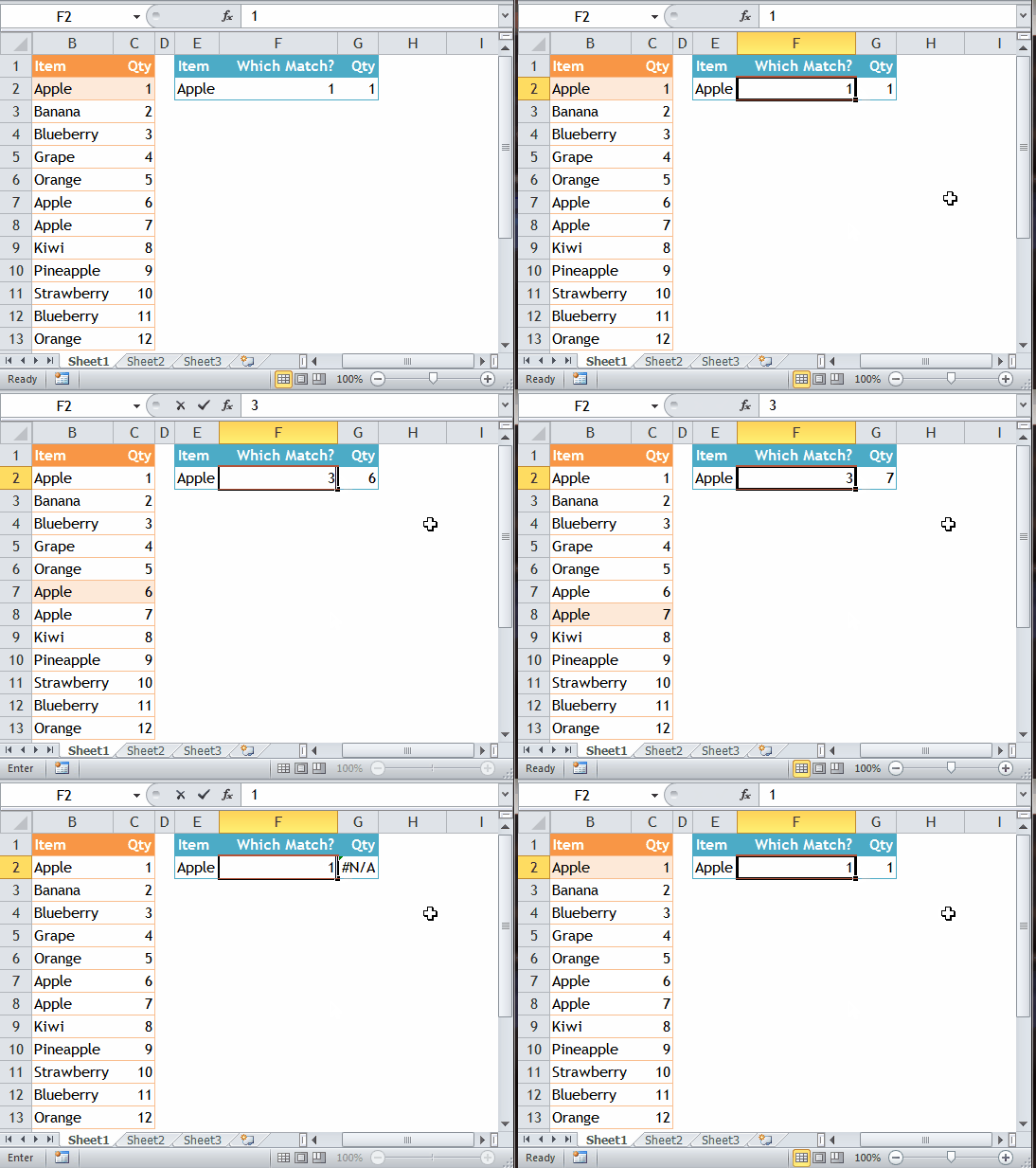
Question: VLOOKUP will return the first matched value found, in case there are multiple matched records what formula should we use?”

This can be achieved by using VLOOKUP with a helper column, or by complicated array formula. VLOOKUP with helper column is my preference not only because it is easier to construct, but also (and mainly) because most users with experience in writing formula would understand it.  I think the latter is important.  It is better using a formula that you (and other regular users) can modify according to your need than seeking help from time to time.

Let’s take a look at the demonstration below:Excel Tip - VLOOKUP nth match.gif Continue reading

Posted in Formula | Tagged , | Leave a comment

How to limit time interval input in a single cell?

Got the following question from a reader:

Under data validation, is it possible for me to restrict the time duration (in a cell) to be 30mins or less?

Example:
9.00 – 9.30 (accepted)
10.15 – 10.50 (rejected)

Excel Tips - Validate 30mins interval in a single cell 0

Obviously, the answer is YES. Continue reading

Posted in Excel Tips, Formula | Tagged , | 4 Comments

A simple trick to go to a specific picture quickly

Here’s the situation: You have many pictures on a spreadsheet, how can you go to a specific picture quickly?Excel Tips - Go to object

Selection and Visibility Pane is on the top of my mind…… but as you see from the above screenshot, you won’t succeed without the magic. Continue reading

Posted in Excel Tips | Tagged | 5 Comments

Excel Humor #2 – Compact view

Excel Humor (2) - Compact view

Posted in General | Tagged | Leave a comment

Excel Humor #1 – Home

I am now having fun somewhere in Tasmania; enjoying my vacation  🙂

So let’s have fun this week and the next.

Excel Humor (1) - Go to Home

Posted in General | Tagged | 2 Comments

Bug with copy and paste in Excel Table

No one says Excel is free of bug.  I have encountered one recently.

Here’s the situation:

In a big Excel Table, with 20k+ rows and 40+ columns (not really big actually), there are quite many formulas.

What I did:

Select a (continuous) range of cells with formula, Copy and Paste Value

What happened:

The top row of my selection is gone; all the cells below go up by one row.  ==> My data shift up by one row

See below animated screenshot: Continue reading

Posted in General | Tagged | 50 Comments

Nested IF vs. VLOOKUP – Which one to use?

When you are uncertain….. Draw a flowchart to decide!

A typical example of using Nested IF (unnecessarily) is to assign a grade to a test score, e.g.

  • below 50 –> Fail
  • 50-59 –> E
  • 60-69 –> D
  • 70-79 –> C
  • 80-89 –> B
  • 90 or above –> A

This can be represented by a flowchart: Continue reading

Posted in Excel Tips | Tagged , , | 6 Comments