
This above video was made just recently. You may read this post to understand more. Note: Please turn on CC for English subtitles.
Hidden rows cannot be unhidden? Why?
Although today is April Fools’ Day and the question sounds like an April Fool’s question, this post is not about to fool anyone. Just another real case to share.
For an unprotected sheet, hidden rows can be unhidden easily. This is so basic. I thought so too before I received a strange worksheet sent by a colleague. (I believe he had no idea what he did.)
In the screenshot below, rows 2:15 are hidden. It is so obvious. Isn’t it?
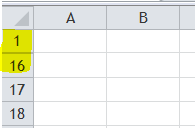
Then I tried the normal ways to unhide the rows, but failed.

- The worksheet is not password-protected.
- Also I tried to press Down Arrow in A1 and observed the change in Name Box. It changed from “A1” to “A16”, which means rows 2:15 are hidden.
But why couldn’t I unhide them?
To test the Hide and Unhide be working properly, I have hidden rows 18:19 (by right-click & hide) and then unhide the whole worksheet:

Strange enough, rows 18:19 are back but not rows 2:15.
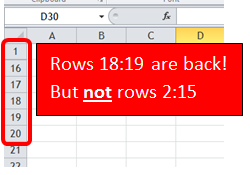
That was one of the weird things I encountered in using Excel.
While I was lost and had no clues, my “shaking” hand gave me the answer:
It is the row height!
It’s difficult to show what I did with my “shaking” hand in a static photo. Let’s take a look at the result when I changed the row height for rows 1:16 in the screenshot below:
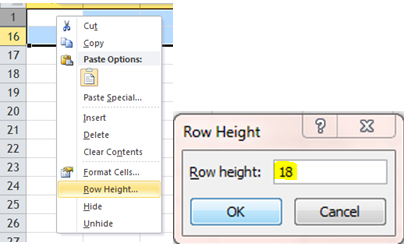
All the hidden rows are back now!

This interesting behavior made me do a little test on different row heights.
Here’s the findings:
- For row height <=0.07, row are basically hidden where we can “unhide” the row as normal
- For row height from 0.08 to 0.67, row looks like hidden (We cannot move to “hidden row” by arrow key) but are not actually. We cannot “unhide” the row as normal. We need to change the row height to have them back.
- For row height >=0.68, we will see a “noticeable” row, so that we know the row is not hidden.
 Row height set at 0.68 for rows 2:6
How do I know these? Just by experiment.
Learning is a series of curiosity, observation, and trials & errors.
If the above doesn’t help you to unhide rows, there may be a chance that the hidden rows was a result from advanced filter. You may read this post for more details.







 wmfexcel
it’s so fun to read your explanation. and its helped me. thankyou
LikeLike
Glad you like it! 😊
LikeLike
Thank you!! I was having the same issue but with being unable to unhide columns. This fixed it!
LikeLike
Welcome! Glad it helps 😀
LikeLike
Also try removing the filters from the header or making sure all filters have SELECT ALL checked.
LikeLike
Nice tips. Thanks Brandon!
LikeLike
I work in data and consider myself an Excel expert. I was in a total panic today when this happened to me and I couldn’t figure it out. It’s always the simple things >.< Thank you for saving me!
LikeLike
You are welcome. Glad it helped. 😀
LikeLike
I still cannot unhide the hidden Rows.
LikeLike
Do you have filter on?
LikeLike
OHW.WOW. Yes it is. and I turned it OFF. JUST WOW. THANK YOU SO MUCH
LikeLike
You are welcome! 😃
LikeLike
Thanks for this article – You fixed my problem. I have no idea, though, why all the rows at the bottom of my spreadsheet were set to somewhere in the height range 0.08 to 0.67. I’m sure I never set them to that size…
LikeLike
There are many unknown myths in Excel. I know that feeling. 😉
Glad to know my article helps!
LikeLike
So that you can’t see them!
LikeLike
select rows either side of hidden rows, hover cursor over row numbers till get double line style, double click and all hidden rows appear. I don’t know how many years have passed but I got old trying to figure this one out!
LikeLike
Yes. That action autofit the row height and essentially resize the row height to make them visible again 👍🏻
LikeLike
Old Cowboy says: June 28, 2018
Perfect solution! The one is this blog didn’t work for me so I tried your solution and it worked first time. Thanks for the tip 🙂
LikeLike
Glad you find a solution. 😃
LikeLike
This worked, the other didn’t. Thank you.
LikeLike
That was it. Thank you.
LikeLike
YOU SAVED ME!! Thank you soooo much Old Cowboy, I tried so many other methods & nothing worked including the main article here. Weirdly enough, I had to double click the same spot with the double lines at least like 20 times fast before it popped the hidden rows back up.
LikeLike
I am working in project data sheet in which there is a rows in 1000…There is some weired issue. Whenever we unhide any column, sheet comes to top row automatically . Due to this i lost my working row eaverytime and search again. Please help
LikeLike
Hi Shikha, do you have Macro in your file?
LikeLike
Does not work, and my sheet is not protected.
LikeLike
Do you have filters on?
LikeLike
That was my question also. I just went crazy trying to unhide some rows and realized my filter was on.
LikeLike
Oh my…thank you….this was my issue and was making me nuts. SAVED. 🙂
LikeLike
Glad it helped. 😀
LikeLike
Thank you. It was so useful!
LikeLike
You are welcome. Glad it helps 😀
LikeLike
I AM NOT ABLE TO UNHIDE THEM
LikeLike
Is your worksheet protected?
LikeLike
Many thanks,
No one seemed to know this at work, strange since our lives depend on Excel sheet from what it seems 🙂
LikeLike
Everyone uses Excel. Does everyone know how to use Excel? 😅
LikeLike
Nice article and you save my day! Though this article is written back in year 2011, it is very useful whenever Excel user like me scratching head when something is not working as expected. Row height…thanks for your sharing!!
LikeLike
You are welcome . Glad you like it.
LikeLike
The row height wasn’t the issue for us, but clearing filters did bring back the hidden rows.
LikeLike
Yeah, This worked after trying the initial suggestion in the above article. Thanks
LikeLike
I too encountered the problem to unhide the row. How it went unhide not known. But after reading the above, I tried but in vain. Ultimately the height point clicked me trying different varieties. I have checked the normal row height and then the hidden row height and clicked on height. Even then no result. Then I tried to drag the bottom line of hidden row and I am through/successful. Sometimes unknowingly many things go the otherway. But after reading the queries we get solved as per directions or we get some other innovative idea. Good we learn something by digging our hidden talent/ideas.
LikeLike
Totally agree with you.
LikeLike
worked thanks!
LikeLike
Welcome!😃
LikeLike
omg…Thank you!!!!!!!
LikeLike
Welcome 😀
LikeLike
Thanks I was really worried but this fixed it!
LikeLike
Welcome😁
LikeLike
greatttttttttttttttttttttttttttt than you so much for this great ans
LikeLike
Welllllllllllllllllllllcome 😁
LikeLike
THANK YOU!!!!!
LikeLike
Welcome 😀
LikeLike
Thank you! Your advice fixed my problem!
LikeLike
Welcome! Glad it helps
LikeLike
In my case i forgot i had filters on. Dumb moment.
LikeLike
It happens. 😄
LikeLike
In my case, a filter was on AND hidden. I GUESS I understand, but if I hadn’t read this comment, I would still be scratching my head.
Thanks!
LikeLike
Yeah. Sometimes comments provide more information than the blogpost itself. 🙂
LikeLike
Thank you!!!
LikeLike
Thank you!!
LikeLike
Shit, just had the same situation too! I though wtf, nothing is working, can’t unhide. Until I read your comment! Damn, I had the filter I forgot about! Thanks! 🙂
LikeLike
Shit happens.
As long as we can find a way to get rid of it, life goes on. 😄
LikeLike
Thank you! I’ve been struggling for ever!!!
LikeLike
You are welcome. 😀
LikeLike
That is what my problem was too. Thanks for mentioning filters.
LikeLike
Cool learning about the row height trick, but I will just stand here, with the forgotten-filter people.
LikeLike
Thanks a lot mate 😉 very helpfull
LikeLike
Glad it helps
LikeLike
Ahh, row height, of course! I hade a very strange behaviour: could not create new rows, could not set filter. Tried all kinds od unhide. For some reason the last rows + second row hade no height! Thanks!
LikeLike
Sound strange. Is your worksheet protected?
LikeLike
Thank You Sir!
LikeLike
You are welcome !
LikeLike
I also noticed on a sheet that i just had the freeze panes was on (Go Figure)
LikeLike
Yes. That is a common case that confirms user many time . Thanks for sharing!
LikeLike
I am also really really grateful! In my case, highlighting the whole spreadsheet and setting the row height didn’t make the hidden rows reappear, although I could do them one at a time by going to the first cell in a hidden row and setting the row height for just that row. Unfortunately I had hidden a lot of rows and the thought of having to do each one individually was unpleasant, but I came up with another solution: I saved the file in csv format, and closed it, then reopened. All of the hidden rows had reappeared.
On another note, I want to congratulate you on the clarity of your instructions and great use of screen captures. I used to do a lot of that and it is not trivial.
LikeLike
Thank you Kim for your kind words.
And thanks for sharing your experience with us. It’s a bit strange as i tried and i can unhide multiple hidden rows by setting the row height of the entire sheet. 🤔
LikeLike
thank you so much. I had the same problem and it worked when I followed your suggestion.
LikeLike
You are welcome. Glad it helps.
LikeLike
Thank you so much for this! Row Height was the problem (although I certainly never changed that – just hid the rows).
LikeLike
You are welcome! Glad it helps.
LikeLike
faced the same issue just now. tried every thing.. and then at the end out of lazyness selected the hidden columns and double clicked .. it came right up.. 🙂
LikeLike
THANK YOU! None of the other suggestions were working for me! Setting Row Height by page, or by row was not unhiding anything. I was getting very frustrated – your laziness has saved my sanity! What a simple little trick. Thanks again!
LikeLike
This was driving me nuts; I don’t know what’s causing it! But when the other solutions didn’t work, this one did. I’m grateful!
LikeLiked by 1 person
hope it isn’t too late to say happy to help 🙂
LikeLike
OMG I tried everything including all of the above and just double clicked and it all appeared… Thank you
LikeLike
Found you on Google (“cannot unhide”); CTRL A entire worksheet then set all row heights at 20. …and there are the once hidden rows. Hero points for you! I will follow you, oh Master…
LikeLike
Glad it helps!
Cheers,
LikeLike
Once I read “It’s the row height” I exclaimed “OMG column A is there”. I went back to my Excel sheet and there was Column A, not missing but just too small to be seen. Thank you!!!
LikeLike
Adjusting the height did not help my worksheet, however, I followed Microsoft Excel suggestion: “…Remove the filter by selecting a cell within the filtered range (in my case – the whole sheet), and on the Home tab, in the Editing group, click Sort & Filter, and then click Clear…” That helped me find my data.
LikeLiked by 1 person
Hi Gerry,
You are right. Filter could be a case for that. Thanks for sharing.
Cheers,
LikeLike
HOLY CATS! Thank you both!!! Mine was a filter issue and I thought I was going to have to BREAK the computer! Going to have to keep this little nugget on file because it happens all the time with this particular person, sharing files. Don’t know why I haven’t retained the info yet though! We shall see. Thanks again!
LikeLike
OMG! THANK YOU!!!! I was seriously going crazy and thought I would have to manually unhide 200 rows. You are a lifesaver!!
LikeLiked by 1 person
You are welcome. Glad it helps!
LikeLike
Yes – this one fixed it for me. Home / Editing / Sort & Filter / Clear.
Thanks!
LikeLike
Me too .. Thanks 🙂
LikeLike
Thank you, Gerry! This worked, finally, for me! Not sure what made the rows do that, but I’m glad they’re back in view!
LikeLike
Thank you!! Worked for me!! On my excel Sort & Filter is under the Data section 🙂
LikeLike
I JUST had this exact problem. Excel 2007. I tried all of the above to no avail. It was the “filter” put on it. Once I took the filters off, BAM, my hidden rows reappeared.
LikeLike
Glad you find a way out. 😀
LikeLike
another reason is cell lock. U need to unlock them first. it will work. select all cells right click it is under format cells/protection. Good luck
LikeLike
Fastest way to unhide those hidden panes? Select the entire page, click on print area and then click set print area and voila! All hidden columns and rows appear.
Try it out…
“There are many ways to the number 9. All of them are correct!”
LikeLike
For me nothing worked. The hidden row wouldn’t unhide, I had tried with row height, filters, unhide, unfreeze. Nothing. But if nothing works, here is what you have to do:
Tested for Excel 2007, 2010 or Excel 2013.
1. If you use Excel 2007, please click Office Button on the top left corner, and then click Prepare > Inspect Document.
If you use Excel 2010/2013, please click File > Info > Check for Issues > Inspect Document.
2. Then a Document Inspector dialog box will appear, click Inspect button.
3. The “hidden rows or columns” in the whole workbook have been inspected and if there are any, there is a “REMOVE ALL” button next to them.
4. Click Remove All, then click Close button. And all of the hidden rows and columns in the workbook will be removed.
Note:
A. If there are formulas to manipulate the data in your workbook and the formulas call for data from hidden rows and columns, then deleting that information will cause incorrect result.
B. With this function, you can delete all of the hidden rows and columns in the whole workbook.
I don’t take any credits for this (just for finding maybe), credits go to the guys from extendoffice.com
LikeLike
Hi Mrrrr,
To my surprise that nothing mentioned works for you.
Nevertheless, thanks for sharing another approach to unhide all hidden rows and columns through Inspect Document.
I did test that. It worked for hidden rows or rows with height less than 0.08. However for rows heights between 0.08 and 0.67, as I described in my findings, the Inspect Document method failed to “unhide” the rows.
I am using Excel 2010 btw.
Regards,
LikeLiked by 1 person
Was using 2010 also, but didn’t test for row heights. Just my hidden ones which were impossible to “unhide”, delete or increase height. Oh well, the more methods the better.
LikeLike
Hi Mrrrr,
If that’s the case, there are two possibilities on top of my mind:
1) Your spreadsheet is protected;
2) There is macro preventing you from adjusting row height.
LikeLike
1) nope
2) nope
*cough
LikeLike
Unfreezing panes is what finally worked for me. Just wanted throw yet another possible resolution out there for those who encounter this issue.
LikeLike
Thanks, unfreezing the panes also worked for me. After trying several methods for about 30 minutes. Thank you.
LikeLike
You are welcome! Glad to help!
LikeLike
HOLY CRAP! I was looking for A1 for a MONTH! Unfreezing did the trick 🙂
LikeLike
unfreezing did the trick
LikeLike
Thank you!! In my case I had filters that were preventing my hidden rows from showing up when I tried to unhide them. You saved me from a LOT of frustration 🙂
LikeLike
You are welcome, Corrie.
Glad it helps!
Cheers,
LikeLike
Thank you! I’ve been trying to “unhide” a column for months and thought it was a lost cause, but I tried autofitting column width just now and the missing column appeared!
LikeLike
You are welcome, Mira. Glad it helps.
Cheers,
LikeLike
Thank you. This helped me unhide columns by checking the column width.
LikeLike
You are welcome!😀
LikeLike
OMG! Thank you! Such a simple fix. Ended up being exactly my problem. Way to think outside the box in your problem solving. It never occurred to me to check the row height.
LikeLike
Hi Amy,
You are welcome!
Glad it helps.
Cheers,
LikeLike
Good point! However this trick did not work for me, but I figured out my problem. I had a filter on one of the columns so the program automatically hid the other rows. I was in the program and turned on a filter, then saved and closed until the next day…I had forgotten the filter was still on.
LikeLike
it worked by auto adjustments of rows and column thanks bhai
LikeLike
Thank you so much! I was scratching my head, too, and couldn’t figure out how to get the missing row back!! Your fix worked perfectly
LikeLike
Hi Doug
You are welcome! Glad it helps !
Cheers 😀
LikeLike
Pingback: Can a row be very hidden?
Precisely what I was looking for! In my case, the top 150 rows had vanished!
LikeLike
I assume they are back now!
Glad it helps 😀
LikeLike
Thank you! I’ve had exactly this problem (well, columns in my case) and your trick worked. I don’t know why, but it did.
LikeLike
Hi Chris,
You are welcome! Glad it helps.
LikeLike
And ofcourse remove the filter of the column, i forgot that
LikeLike
Mark the row over and under the hidden rows, right click “unhide”.
LikeLike
Hi Orkney,
Thanks for your comment.
You are right for a normal circumstance of hidden rows. However that does work in my example… And that’s why I wanna share that strange experience here to anyone with the same experience.
LikeLike
This did not work for me! Any other ideas? I am having the exact same problem- I created a spreadsheet with a row for each day of the year. I filtered out all dates except January dates to focus on those. When I go back to bring in February so I can work on that, it doesn’t show up in the filter, and I can’t unhide those rows in any of the above ways. I am trying to avoid individually pulling out each date (I have this problem on several other spreadsheets, as well.) No one around here has been able to figure it out, including my IT guys.
LikeLike
Hi Lindsey,
It sounds strange.
Some quick thoughts:
1) Is the pane being frozen?
2) Do you mean the filtered rows were deleted so that they won’t go back on the filter? If so, have you checked is your file with VBA?
If you can post your question on a forum, MrExcel.com (http://www.mrexcel.com/forum/forum.php) is always my favorite forum, with the descriptions and screenshots, you may have a high chance to solve your problem.
Cheers,
LikeLike
Perfect! The pane was frozen. Thanks!
LikeLike
You are welcome! Glad it helps! 🙂
LikeLike
Pingback: Unhiding Rows