
Have you ever encountered a situation that you need to find out how many days in Period 2 fall into Period 1?

Is using IF(IF…(IF…(IF…(IF….. the first thing in your mind? Continue reading
Have you ever encountered a situation that you need to find out how many days in Period 2 fall into Period 1?
Is using IF(IF…(IF…(IF…(IF….. the first thing in your mind? Continue reading

In previous posts, what do we need to know about inputting date in Excel was discussed. Suggested solutions for fixing trouble dates were also given. But WHY having date input correctly in Excel is so important? Why should we care?
Answer: It’s all about analytical ability. Continue reading
From time to time, we work with dates in Excel files. Well, if dates were input correctly as serial number, everyone is happy. However, if dates were input as text or other unrecognized date format, it could be really frustrating.
The screenshot below shows you the most common “error” in dates:
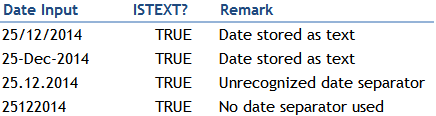
Don’t worry! There are many easy ways to fix these troubles. Continue reading
The answer: It depends! Depends on what? Continue reading
Although they sound like basic questions, I am quite surprised that many colleagues are not aware of the different ways to input date in Excel “correctly”. I would like to understand the situation of other Excel users by putting a poll here. Pls vote without trying in Excel. 🙂
p.s. “correct” means what you input should be interpreted as a serial number that represents a date in Excel, not a text string.
For related post, click HERE.

SUMIF is a commonly used function to give you sum of a range that meets a specific criterion. For the example above, if you want to know the total expense of Department 1 in Jan, you can use SUMIF:
The Syntax
SUMIF(range,criteria,sum_range) Continue reading
Do you have a habit of right-click a cell and Delete it rather than pressing the “Delete” button on keyboard?

If you do have this habit, I guess you possibly are frustrated by the following experience before:
This post is about two things:
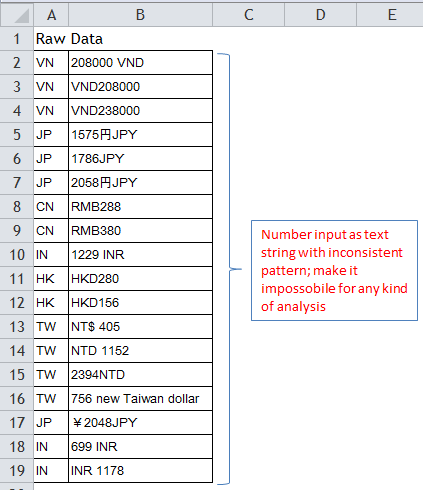
Another real work example. I was given a simple task: “Pls get the data of money spent from the web-based report portal and see how many entries were below budget.” Isn’t it a simple task? I think so… until I got the data. The screenshot below shows part of the data:
 A simple trick (click) can save you lots of time.
Below is a commonly seen scenario in my work life:
A user wanted to copy a table to a new worksheet/workbook, what he/she normally did was CRTL C then CTRL V.

The pasted result was however not desirable because of the column widths.

Then he/she would adjust the column widths one by one again…
Did you know… you can do that in just two clicks? Continue reading
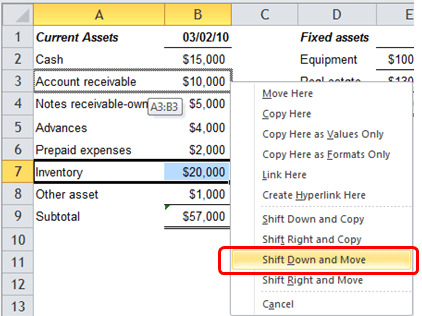
Last week, I learned from Debra Dalgleish to convert formula into value by using mouse. What a simple and handy trick! Honestly, I have never seen that before even though I knew the same trick for Fill. After watching her demo, I experienced that on my own and realized that it works for moving cells too. To me, it’s like a discovery of new land. 🙂 Why? Because that’s a handy alternative to Cut and Insert Cut Cells… Continue reading
We talked about how to limit user to input Time in the previous post. Let’s go one step further with Custom Data Validation, where you can put a logical formula to determine what can be input. Only when the formula returns a TRUE result, the input is validated. Continue reading
Sometime, actually too many times, users may not input cell content in a way you want them to. As a result, the formula you set for calculation may go wrong; and you may go crazy… ;p The screenshot below shows an example of miscalculation due to incorrect TIME input.

To minimize (*not to avoid) the chance of such human error, DATA VALIDATION is the tool for you.
Auto Fill is a very handy feature in Excel. I believe many users use it every day. A simple example is to fill a list of sequential numbers, say from 1 to 18.
What you need is to input 1 to the starting position of the list, then enter. Next you move your cursor to the Fill Handler (the lower right corner of the cell, until you see a black cross), and then drag down to the desire position and drop.
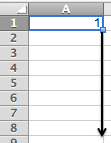
Click the Smart Tag –> Select Fill Series

There you go. So simple.
The problem is, what if I need a BIG list, say from 1 to 10,000? As a matter of fact, I have witnessed many people doing so by dragging down. It’s so time consuming to drag the cell down even by just 1,000 rows.
Here’s the solution: Continue reading
By default, gridline is not printed on paper. Nevertheless, I would usually remove gridline when I submit my report, or paste part of a spreadsheet into PowerPoint or Word. Why? Simply for better look and feel.
See the screenshots below to see the impact:
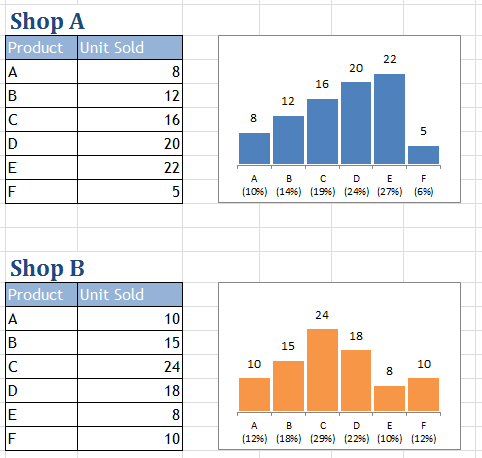
By simply taking out the gridline, the same presentation looks better instantly.
So why you keep your gridline in your report? Probably two main reasons… Continue reading
If you are trying to build a table of data which is analysis-friendly, DO NOT use line break in your fields and labels. Otherwise, you will create unnecessary steps to remove line break for effective lookups related formula… Sounds familiar to you? ;p
Fortunate enough, it’s not difficult to remove all line breaks in your spreadsheet:
In Word, it is so simple to input a line break by pressing Enter. However in Excel, pressing Enter will take you to the cell below.
To input line break in Excel requires just a simple key combination. What you need is to press the ALT and ENTER keys together. Yes. It is as simple as that.
Btw, there are always unexpected way of doing that in workplace. Take a look at the screenshot below.
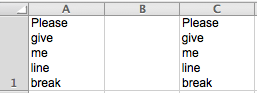
They looks like the same? but input in different ways: Continue reading
Let’s continue the topic of uncommonly used text alignment. This time, it’s Distributed.
Honestly, another format rarely used in my work life. So what is it about?
We talked about examples of using “Text Alignment – Indent” in the previous post. In the coming posts, let’s talk about the rest of the less commonly-used text alignments. Actually, I find it a bit challenging to cite real-life examples for some of those. “Fill” is one of those.

There are different types of (horizontal) text alignment in Excel. Most people know about (and use mainly) General, Right, Center, Left. But are you aware of Indent, Fill, Justify, Centre Across Section and Distributed?

Let’s talk about Indent this week. Before we begin, can you tell me the differences among the three tables below?

“I started a new workbook. Worked so hard to create a report from scratch. Meanwhile I opened many other workbooks to get the data I needed. Then I realized that too many workbooks were opened. I closed some of them and clicked “Don’t Save” when prompted…… OMG, did I just close the workbook that I am working on… without SAVE??? Would someone save me???”  Does it sound familiar to you? Continue reading



New Generation Finance - Accounting - Controlling using Microsoft BI stack
A Power BI Creator Blog
Work smarter by Mastering Functions in Excel
Work smarter by Mastering Functions in Excel
Helping lawyers make the most of Microsoft Excel
Work smarter by Mastering Functions in Excel
Work smarter by Mastering Functions in Excel
Work smarter by Mastering Functions in Excel
Peltier Technical Services - Excel Charts and Programming
Turn your data into opportunities
Q&A about Excel
Doug Glancy's Excel Site

 wmfexcel