
In Power Query Editor, there is a button of “Keep Duplicates” in the ribbon. It’s located under Keep Rows in the section of Reduce Rows in the Home tab of the ribbon.

With this, it is super easy to keep duplicates in our dataset. By the way, duplicates mean value appears more than once. Let’s take a look at the screenshot below, “A”, “B”, and “F” are duplicates,

while “b”, “C”, “D”, “E” are uniques (i.e. values appear only once).

When we apply “Keep Duplicates” to Column1, we obtain the following result.
The good thing about Power Query is, we do not have to worry about the M code auto-generated. Power Query handles the M codes, we handle the User Interface, which is mainly “select and click”. Easy for users, isn’t it?
Why is there NO “Keep Unique”?

However there are moments we could not find an appropriate action from the User Interface. For example, why “Keep Unique” is not there? I have no answer for that. Luckily, we can get what we need by modifying the M code, some (if not most) of the time.
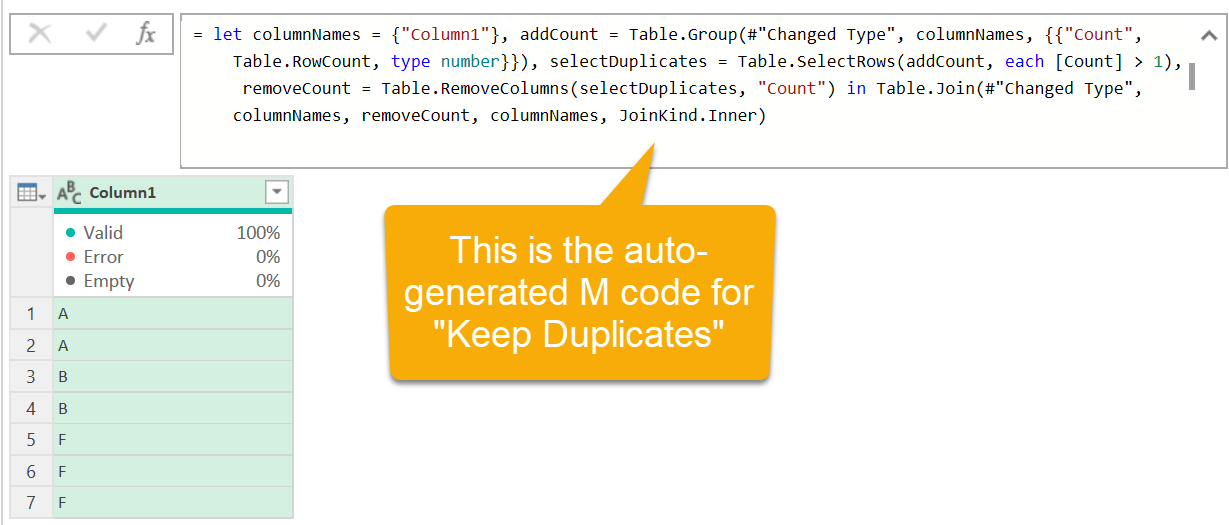
Below is the M code auto-generated for “Keep Duplicates”.
= let columnNames = {"Column1"}, addCount = Table.Group(#"Changed Type", columnNames, {{"Count", Table.RowCount, type number}}), selectDuplicates = Table.SelectRows(addCount, each [Count] > 1), removeCount = Table.RemoveColumns(selectDuplicates, "Count") in Table.Join(#"Changed Type", columnNames, removeCount, columnNames, JoinKind.Inner)
It is alien language to most Excel users, including myself. 😅 Nevertheless, we can borrow the step of “Keep Duplicates” and then turn it into “Keep Unique” with a little twist to the M code, as demonsatred below:

Here we go!

Can’t believe it is as simple as that? Yes it is, when you know where to modify.
Hey, don’t forget to rename the step accordingly.

I hope you like this trick. 😎
Want to learn more about different ways to keep the rows you need in Power Query? Here’s a short video for you. (Cantonese version is also avaliable)





 wmfexcel